

In the Pokémon Box in Pokémon Champions, you have a default limit of 30 slots for storing Pokémon. Although there are ways to increase the number of available slots, it is still quite easy to reach the limit when recruiting new Pokémon, especially if you bring them over from your Pokémon HOME account. Just in case, this section of our guide explains how to release Pokémon from your Box and free up some slots if you haven't worked out how to do so yourself.
Freeing up space in your Pokémon Box in Pokémon Champions is actually quick and easy. Simply visit the Recruitment menu, where you will find an option called Return Pokémon, as shown below:
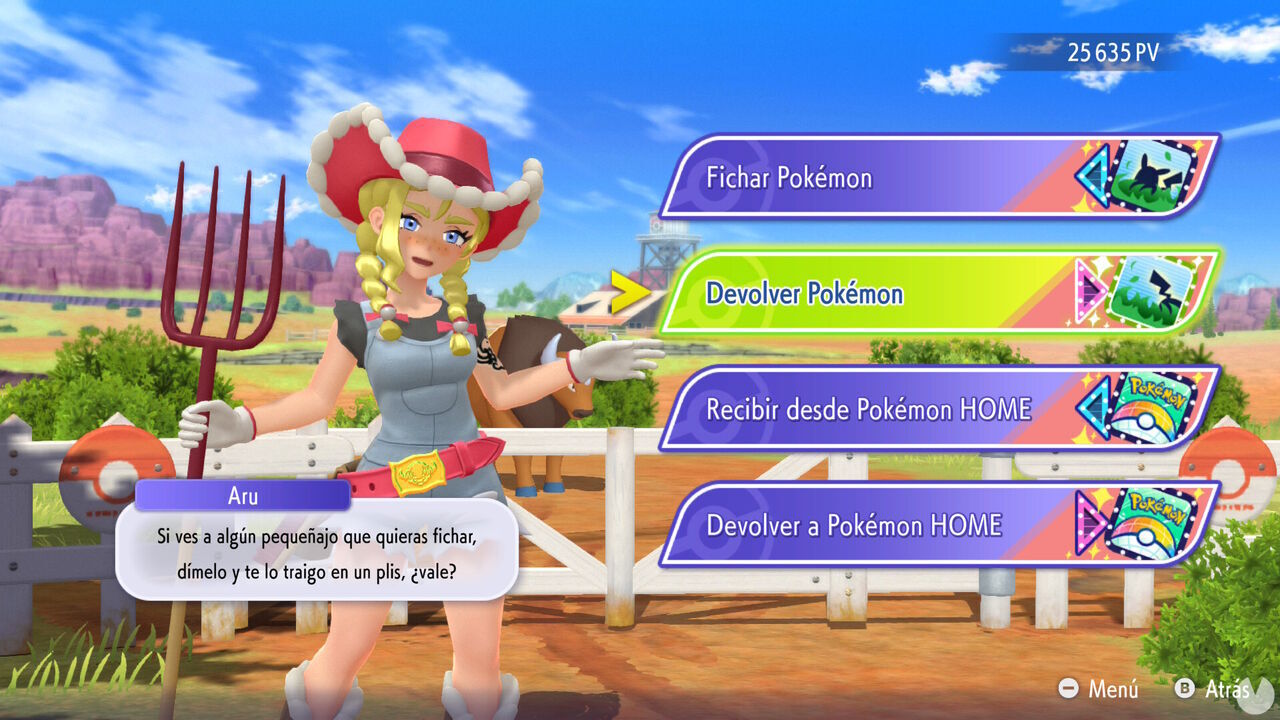
Select this option to open your current Pokémon Box. Here you will see all the Pokémon you have recruited and can select the ones you want to part with. However, this menu can only be used to release Pokémon obtained directly within the game or through Mystery Gifts.
Choose the Pokémon you want to remove—you can select up to 30 at once—and, when you're ready, press the X button labeled "Return":
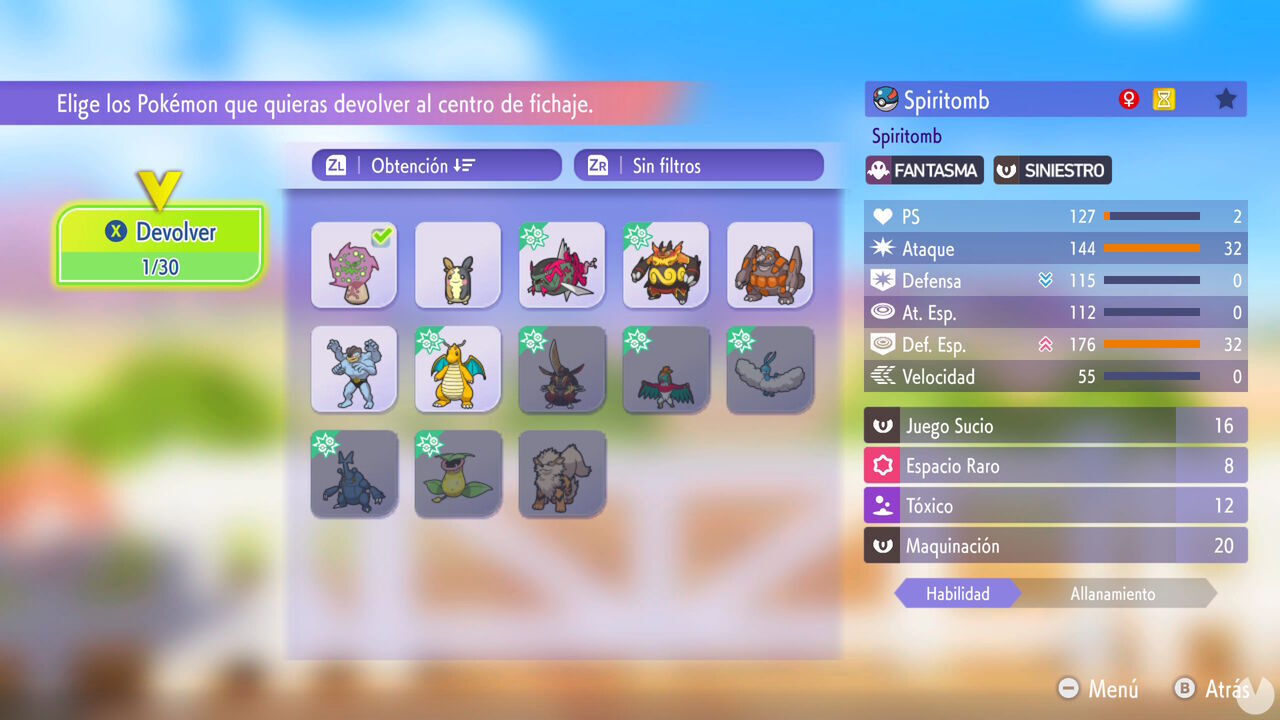
Selecting Return sends the chosen Pokémon back to Roster Ranch, including any currently assigned to one of your battle teams. Be careful, as this permanently removes those Pokémon from your account, and there is no way to recover them. Make sure you really want to do this. If you're certain, confirm that you want to return them.
If you have visiting Pokémon brought over from Pokémon HOME, they cannot be returned to Roster Ranch in this way. In other words, you cannot permanently remove them from your account. To free up the slots occupied by these Pokémon, select Return to Pokémon HOME from the Recruitment menu.
You won't actually lose these Pokémon. Instead, they will be sent back to your Pokémon HOME account, meaning you can bring them over to Champions again later if you wish.
