Pokémon Champions is now available, and one of the best features it offers players is the option to connect the game with the Pokémon HOME app, so you can send Pokémon from other games to this competitive free-to-play title. Without a doubt, this is a great way to get new Pokémon in Champions, including any Shiny Pokémon you may have stored.
That said, the whole process of sending Pokémon from HOME to Champions can be a little confusing if this is your first time doing it. To clear up any doubts, we have prepared this section of our guide, where we will walk you through every step, explain what limitations apply to this connection, which games are compatible with transfers, and much more... Take note!
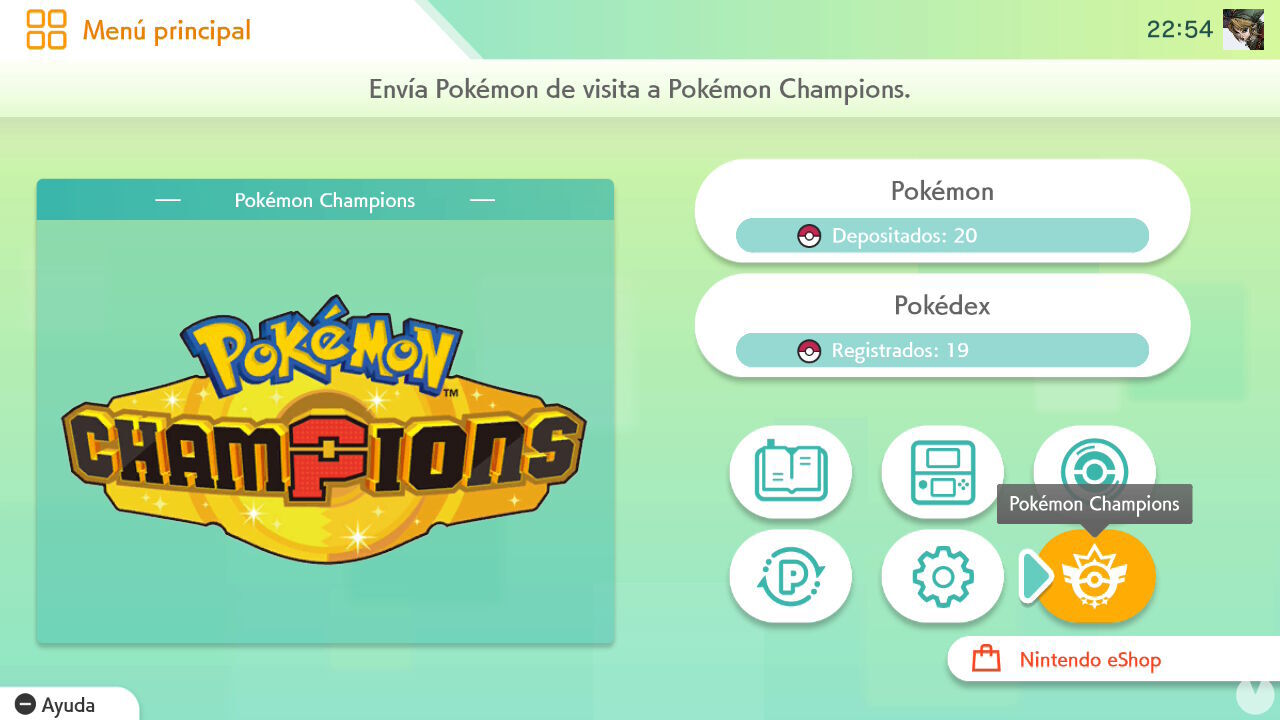
If you have already started playing Pokémon Champions, then you can now link your game account with your Pokémon HOME account. To do this, open the Pokémon HOME app on Nintendo Switch and look for the Champions icon in the main menu, as shown below:
Keep in mind that you can also do this from the Pokémon HOME mobile app on Android and iOS. In that case, open the app, go to the "Options" menu and tap the "Send as visitor" button you will see in the section called "Connection with Pokémon Champions".
After tapping the button we mentioned, the Pokémon HOME app will check your Pokémon Champions account, so your Trainer name and user ID from this game should appear shortly, as shown in this screenshot:
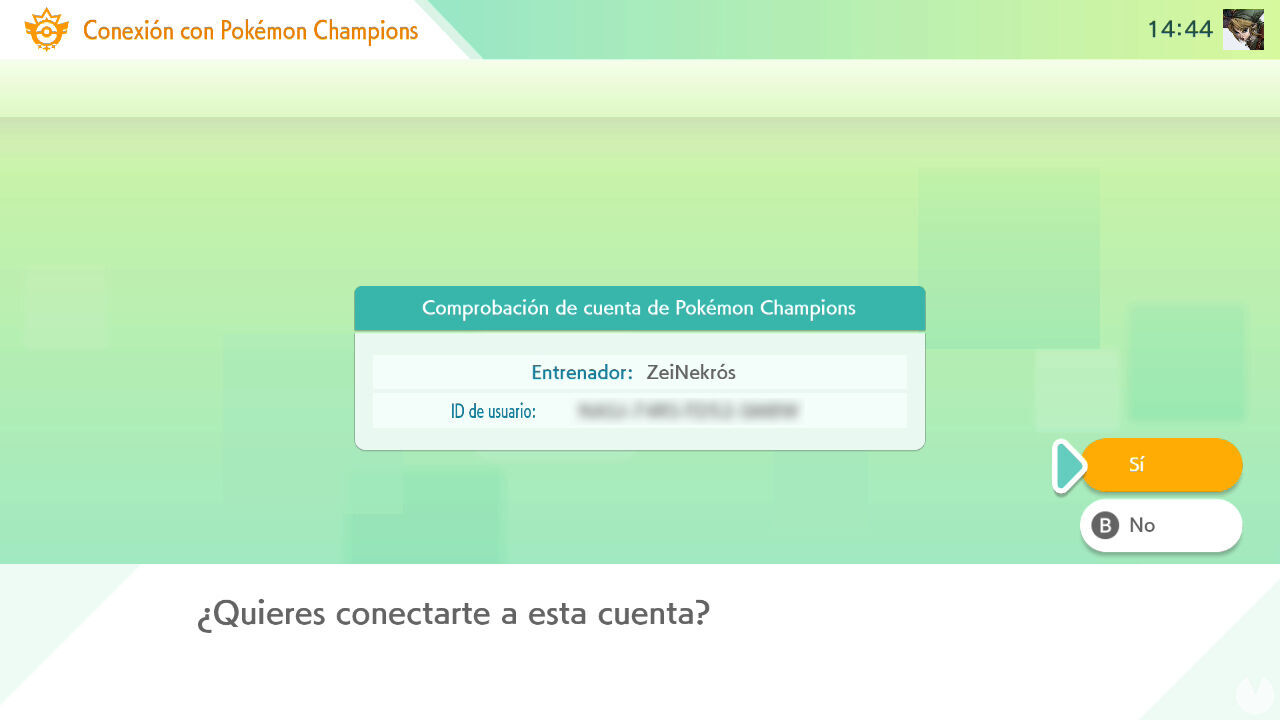
If you recognize the details shown, tap "Yes" to connect the account with HOME, and that is it. The app will now be linked to Champions.
Before anything else, there are several restrictions and limitations you should know about when sending Pokémon from HOME to Champions. These details are important.
For example, you can send up to 30 Pokémon at once from HOME as visitors, and up to a maximum of 1,000 in total, as long as you have enough box space in Champions. The attributes the Pokémon has at that moment will be used to determine what it will have in Champions, such as its moves or nature.
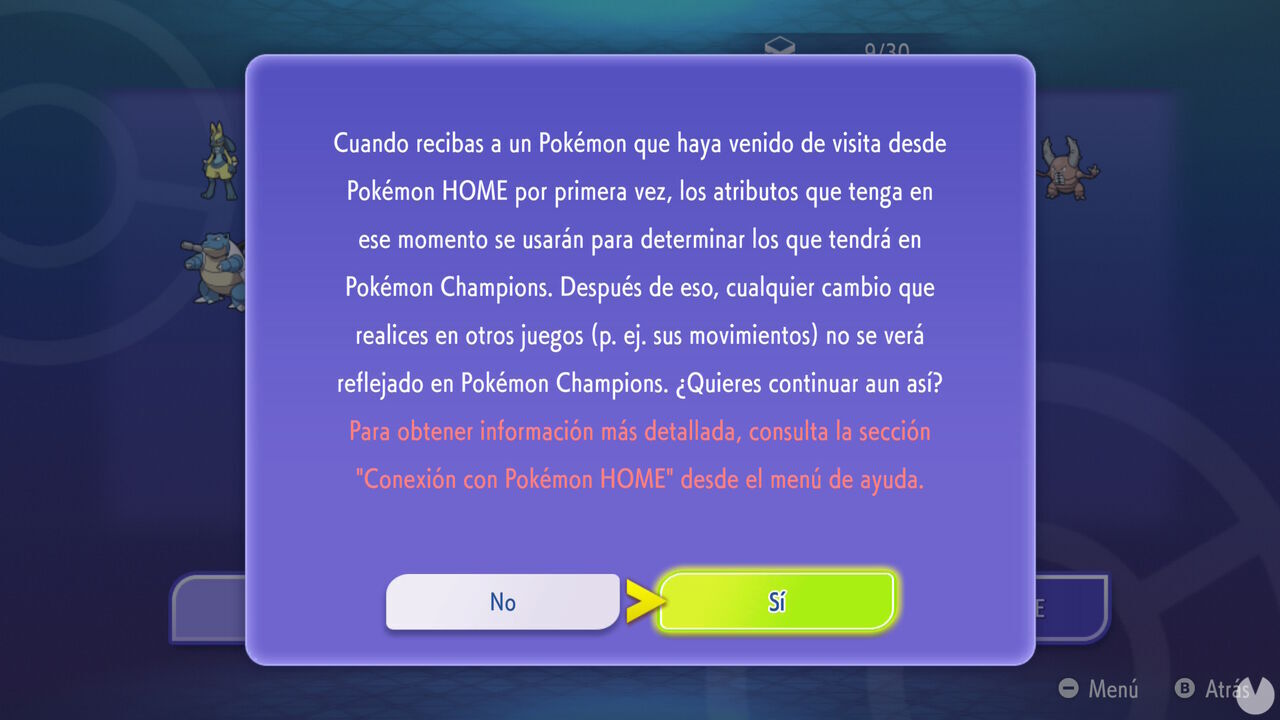
However, Pokémon are not actually transferred completely to Champions. Think of it as sending a copy of them for a "visit", so the original Pokémon still remain in HOME. That said, while your Pokémon are visiting Champions, you will not be able to do the following with them in Pokémon HOME:
Also, remember that Pokémon you have sent to Pokémon Champions can increase their stats during the visit, but these will go back to their original values when they return to Pokémon HOME. In other words, any changes you make by training them in Champions will not be reflected in HOME.
If you later send the same Pokémon to Champions again, it will keep the changes you applied the first time, unless you send it in a different form. In that case, its stats will be reset, as if you were sending it for the first time.
Finally, some Pokémon may know moves that are not available in Champions. If this happens, you will not be able to use those Pokémon in battle until you train them so they learn compatible moves.
Below you can find the list of Pokémon games that are compatible with sending Pokémon from HOME to Champions:
Older Nintendo 3DS games, for example, are not directly compatible, but you can still transfer Pokémon from those titles if you have them stored in your Pokémon Bank.
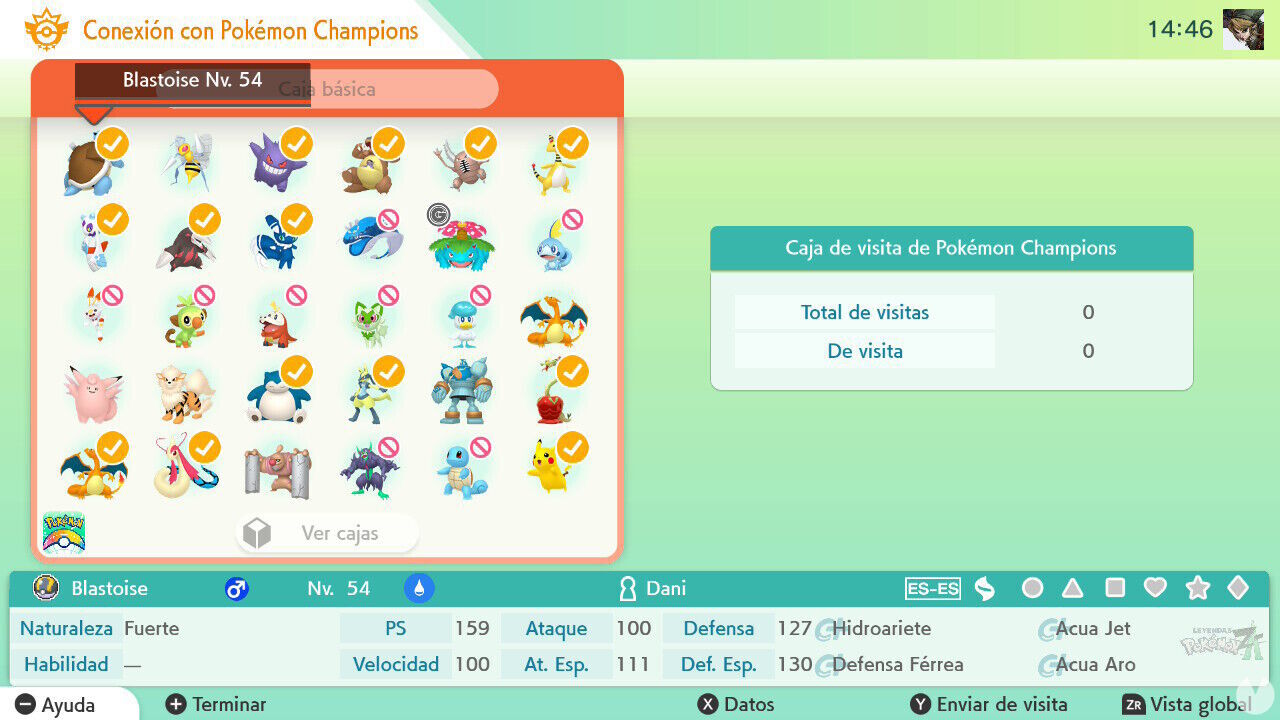
One important thing: not every Pokémon from the games listed above can be sent to Champions. Pokémon that cannot be used in Champions will appear marked with a red symbol in HOME when you try to send them. Remember to check our guide entry on all Pokémon available in Champions to see how many are included in this game and know in advance which ones you can send.
Once you have linked your HOME account with Champions, sending Pokémon as visitors from the app to the game is very easy. This is always done from HOME, not from Champions.
After doing this, there is one final step, and it is done directly from Champions. So now start Pokémon Champions and open the "Recruitment" menu. Once there, select "Receive from Pokémon HOME". This section should have a red exclamation mark.
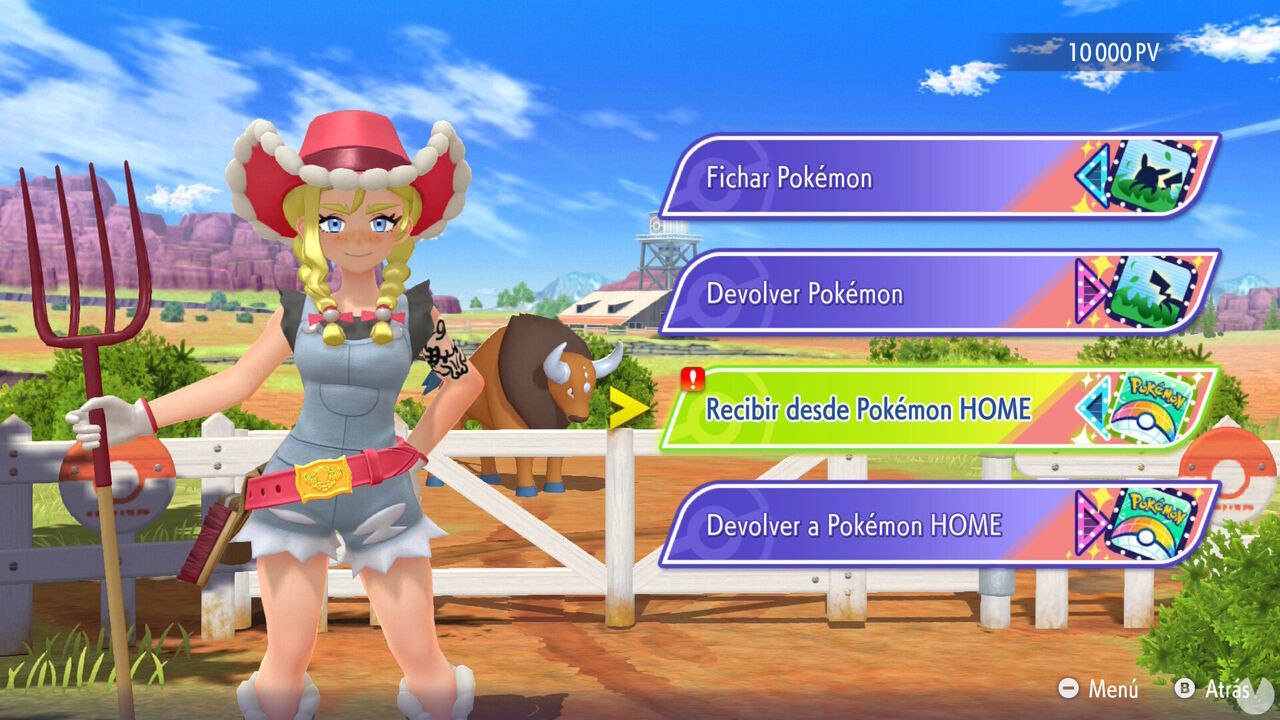
All the Pokémon you chose to send from HOME will appear on screen. Select "Receive from Pokémon HOME" so they become available in your Champions box.
Sending Pokémon to Champions from Pokémon GO requires a slightly different process from the one explained above. First, you need to connect your Pokémon GO account with Pokémon HOME. Follow these steps if you are not sure what to do:
After sending Pokémon to HOME this way, they will be in your box, and you can follow the same steps explained above to send them to Champions.
When you want to send Pokémon from Champions back to HOME, all you have to do is open your Champions save file and go to the "Recruitment" menu. From there, select the "Send back to Pokémon HOME" section.
This will open a screen where you can see all the Pokémon you have sent from HOME. Here you can select the ones you want to return so they can go back to HOME.
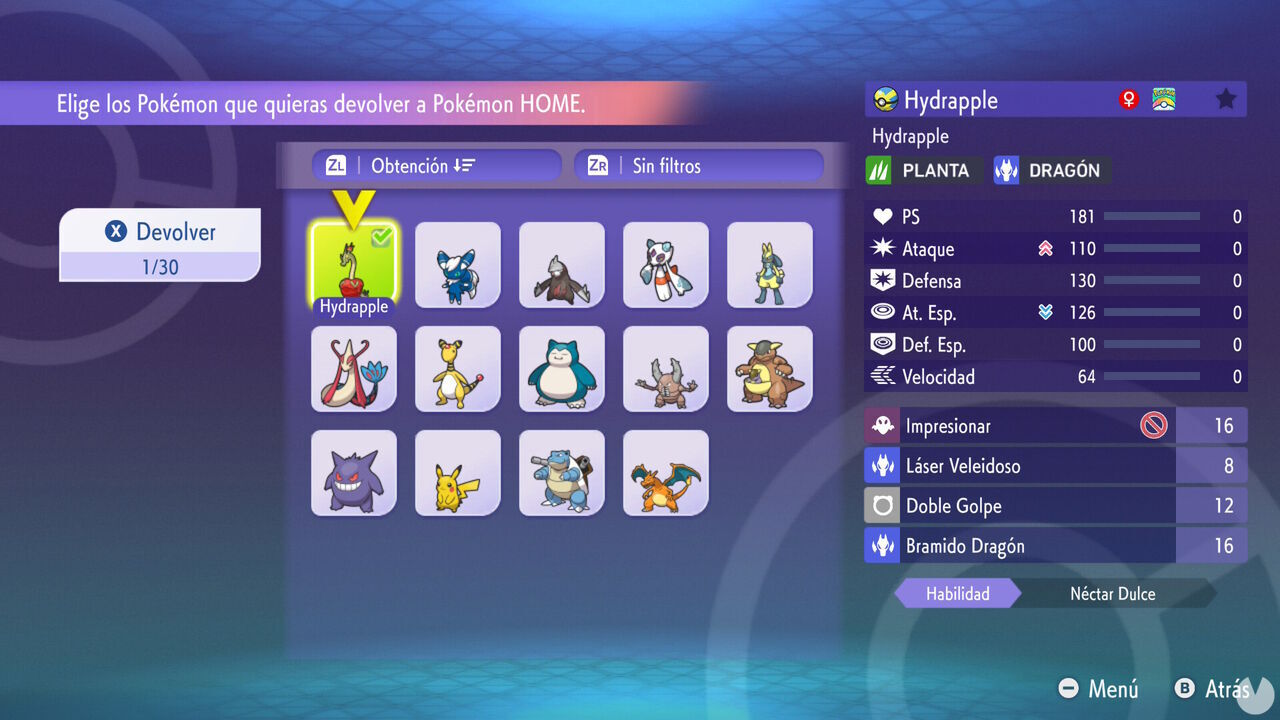
And that is it. Quick and easy, with no extra complications. Just remember that you can send back a maximum of 30 Pokémon at once.