Vandal
Free Fire: How to Create and Edit Custom Maps and Invite Friends

Free Fire: How to Create and Edit Custom Maps and Invite Friends

Learn how to create fully customized Free Fire maps from scratch, edit them, set up rooms and invite your friends to play together.
Daniel González · Published: 9 Aug 2026, 17:59

Are you one of those creative players who loves designing their own maps and environments in video games? If so, you have probably found your way to this section of our guide because you want to learn how to create maps in Free Fire. Below, we will walk you through every step so you can create your own custom maps in Garena's popular game.
How to access the Free Fire map editor

Free Fire - How to create a map

If you want to create a map in Free Fire, the first thing you need to know is that this feature is exclusive to Free Fire MAX, the enhanced version of Garena's game that can be downloaded for free on both Android and iOS. If your phone is compatible with Free Fire MAX, download the app and log in with your usual account.

To access the map editor, also known as Craftland, you need to follow these steps:
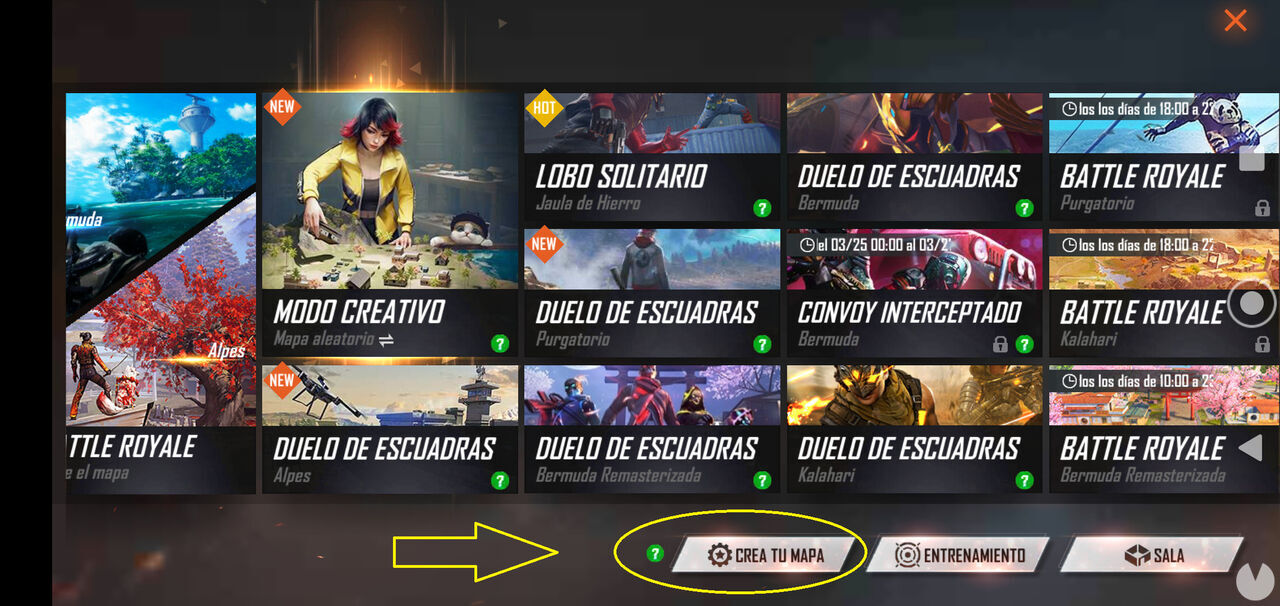
  • From the main menu, tap the game mode selection button in the bottom-right corner of the screen.
  • Among the available game modes, you will see a button called "Create Your Map" or "Art Studio" at the bottom of the screen.
  • Free Fire - How to access the map editor

  • Tap this button to open Free Fire's Creative menu.
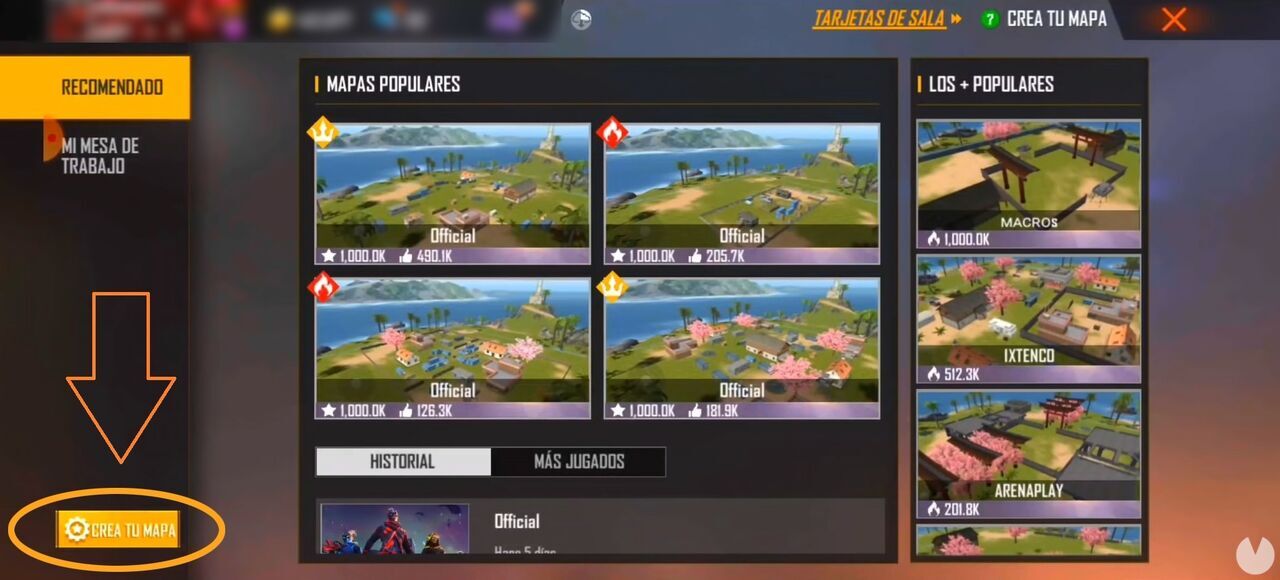
  • You should now see another button called "Create Your Map" in the bottom-left corner of the screen, but only if you are playing Free Fire MAX.
  • Free Fire - How to enter Create Your Map mode

  • Tap this button to access the map editor.

How to create and customize your maps

Once you have accessed the Free Fire map editor, you will appear in front of an environment featuring several buildings and areas marked with different colors. From here, you can experiment with creating maps however you like, although we have some general tips to help you customize your map:
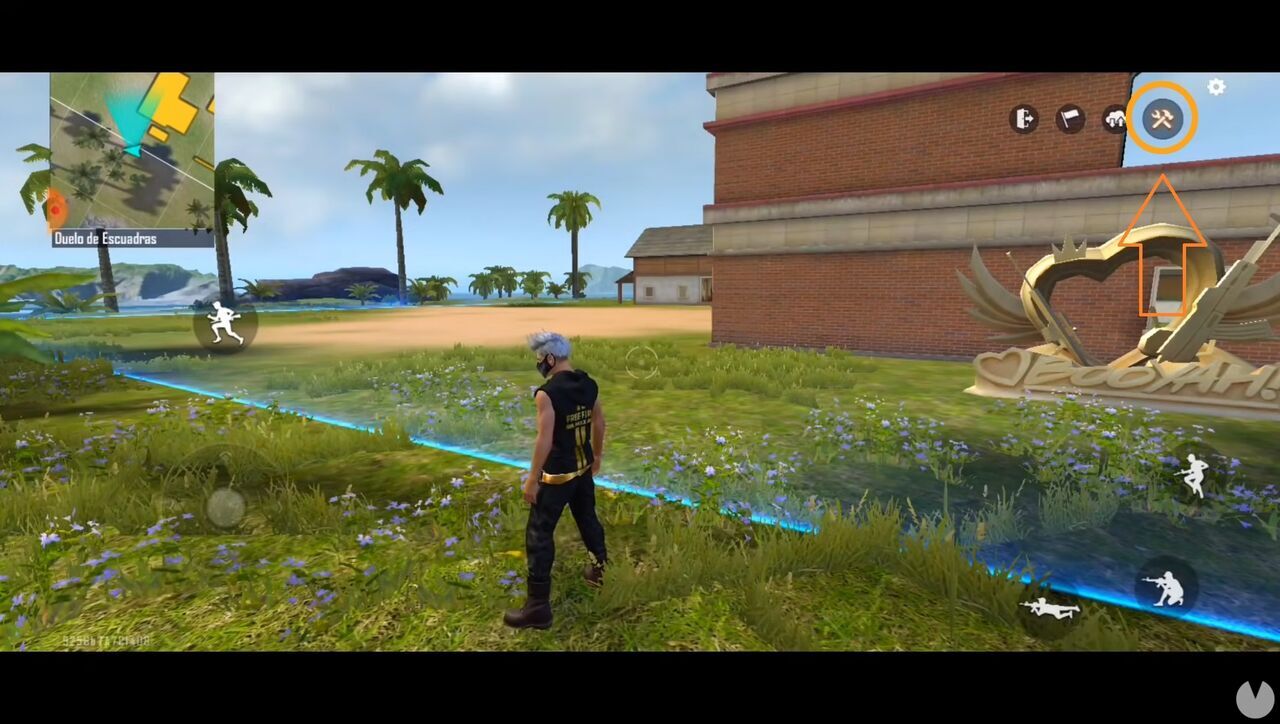
  • To begin customizing your map: Tap the hammer and wrench icon in the top-right corner of the screen.
  • Free Fire - How to start customizing a map

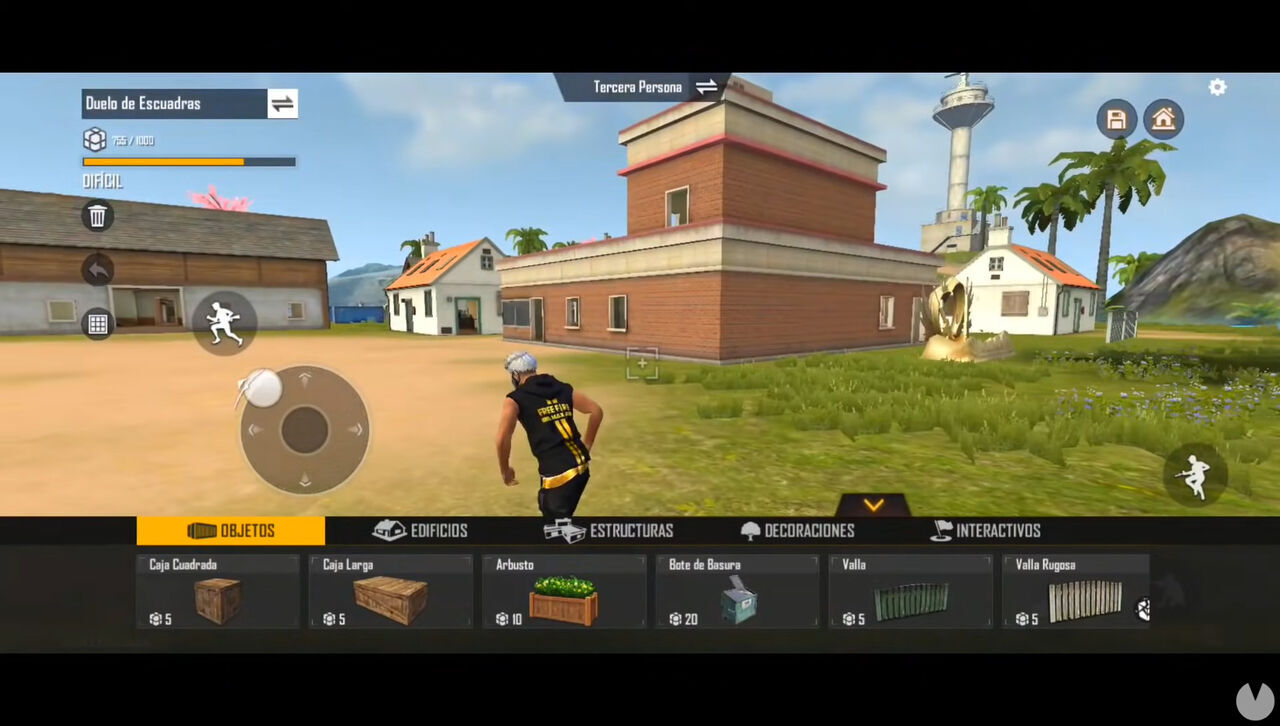
  • This button opens the map editing menu: Here you will find plenty of objects, buildings, structures, decorations and much more.
  • If you want to edit the entire map from scratch: Tap the trash can icon on the left-hand side of the screen and delete all the objects and resources placed on the map.
  • You can place any elements you want on the map: However, there is a limit of 1,000 memory points. Each object uses a different amount of memory, and the bar in the top-left corner shows how much capacity you have left.
  • Free Fire - Map editor menu

  • Once you have finished editing your map: Tap the save icon in the top-right corner, next to the house icon, to avoid losing your progress. The map will be saved locally.

Finally, after saving your map, remember that you can tap the cloud button with two arrows to upload it to the Free Fire servers. This allows you to share your creation with the entire player community so that others can try the map and even give it a like. If your map receives enough positive ratings, it may appear on the recommended maps page.

You should also bear in mind that creating your first map is completely free. However, if you want to create additional maps, each one will cost you 100 diamonds.
How to get Craftland Room Cards and create rooms

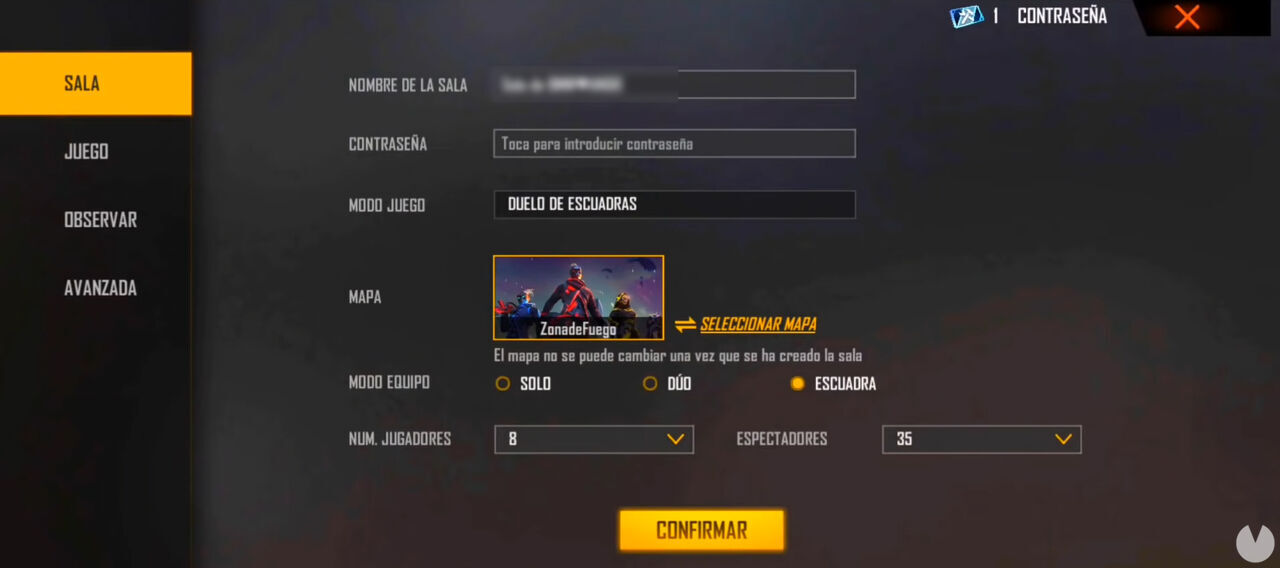
Free Fire - How to create rooms for custom maps

After creating a map and uploading it to the Free Fire servers, you can invite your friends to play a match on it by setting up a room.

  • To create a room for one of your maps, you must first use a Craftland Room Card.
  • Craftland Room Cards can be purchased from the store or obtained as rewards from certain limited-time events.
  • Once you have one of these cards, open your map in the editor and tap the flag icon.
  • This will take you to a menu where you can select your map and choose the type of room you want to create.
  • Configure the settings however you like and then invite your friends to join the match.

Why is the map creation menu not appearing?

If you want to create a map in Free Fire but the option that lets you start designing it does not appear when you open the "Create Your Map" or "Art Studio" menu, you should know that map creation is exclusive to Free Fire MAX, the enhanced version of Garena's game.

In other words, you cannot create maps in the standard version of Free Fire, although you can still access maps created by the community. Therefore, make sure you download Free Fire MAX and launch the game through this enhanced version if you want to edit your own custom maps without any problems.

Flecha subir