
Roblox has become one of the most popular games among children and younger players in recent years. This entertaining title encourages creativity and imagination while offering social tools for building huge communities. Therefore, if you're the parent of a child who plays Roblox, you may be wondering what you can do to protect and supervise them on the platform.
First of all, if you still don't know what Roblox is, take a look at the relevant section of our guide for more details. Below, you'll find a quick Roblox guide for parents explaining, among other things, which parental control features the game provides, how to protect your children's accounts, and much more.
The company has worked on several aspects of Roblox specifically designed to protect underage members of the game's community. Its developers pride themselves on continually creating cutting-edge technology to ensure that Roblox remains a safe and enjoyable platform for everyone.
Broadly speaking, these child protection features include the following:
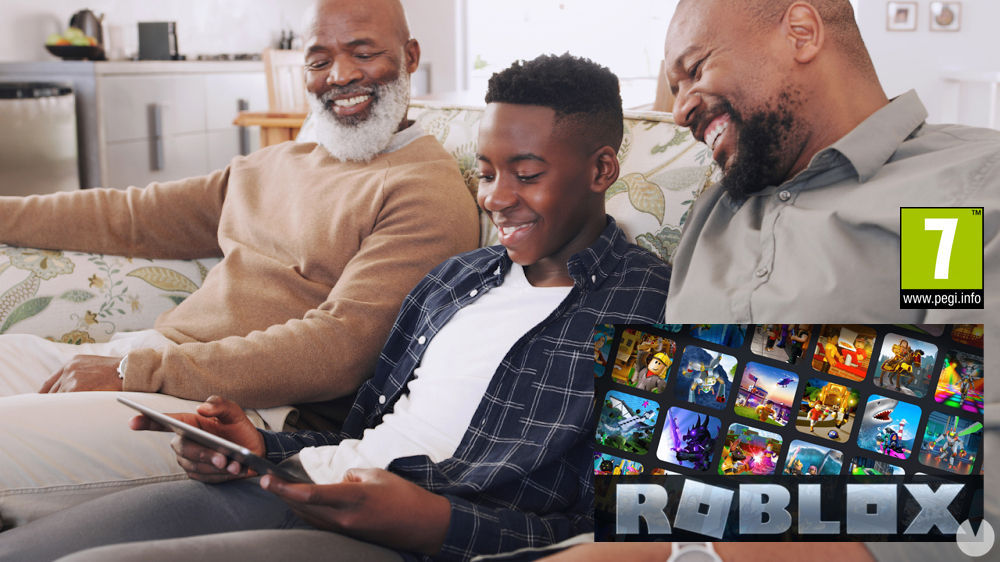
Roblox does not have a minimum age requirement for players. In other words, both children and adults can enjoy it, and the game has been designed so that even younger children can have a great time. Nevertheless, Roblox does have a PEGI rating, the European system used to classify video game content by recommended age.
However, bear in mind that not all Roblox content is fully available in Spanish, which may make certain games more difficult for younger children to enjoy.
A large number of children between the ages of 7 and 13 play Roblox, which is why the company includes several parental control features for users under 13, as explained below.
Parental controls are extremely important in video games, as they allow parents to manage how their children use a game while also protecting their privacy and online safety. Roblox is not inherently dangerous for children, but the usual problems and toxic behavior can still arise within its enormous community. For this reason, the game provides a very useful set of parental controls.
First of all, bear in mind that if your child's account is configured with a date of birth indicating that they are under 13 years old, all of Roblox's special child protection filters will be enabled automatically. However, these filters can still be customized as required.
Parents can protect children on Roblox in the following ways:
Note: the Roblox user account must have an email address linked to it before its parental controls can be changed.
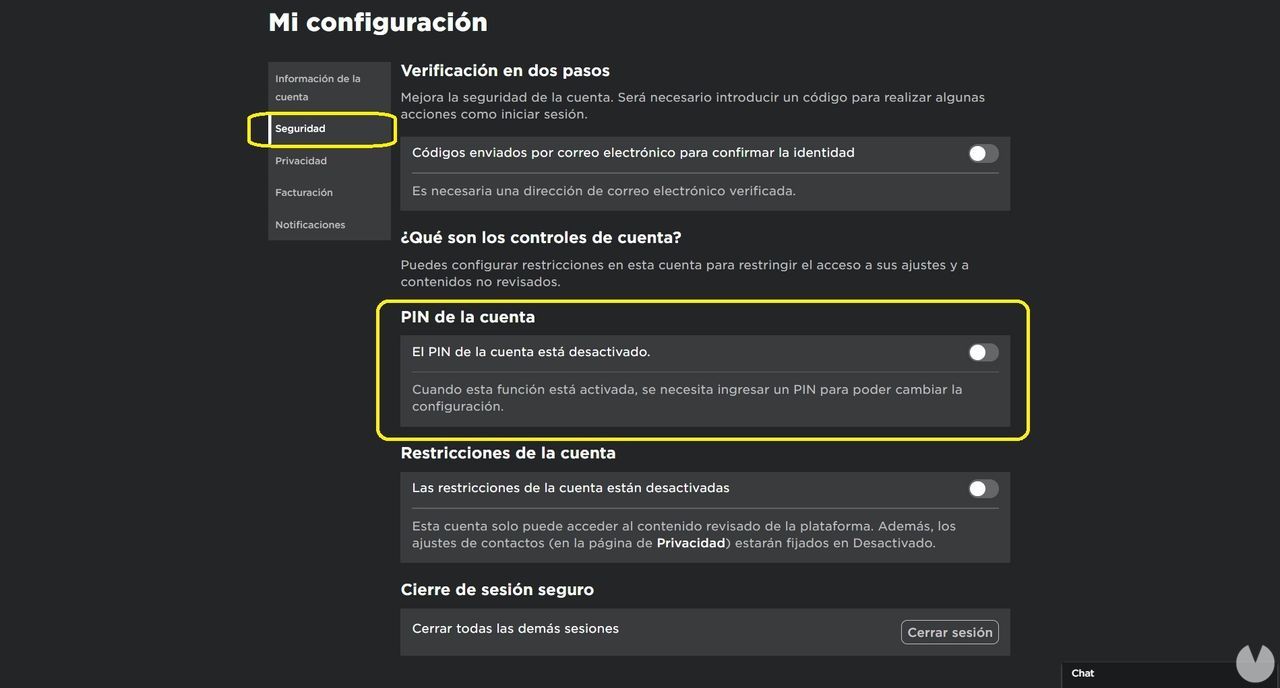
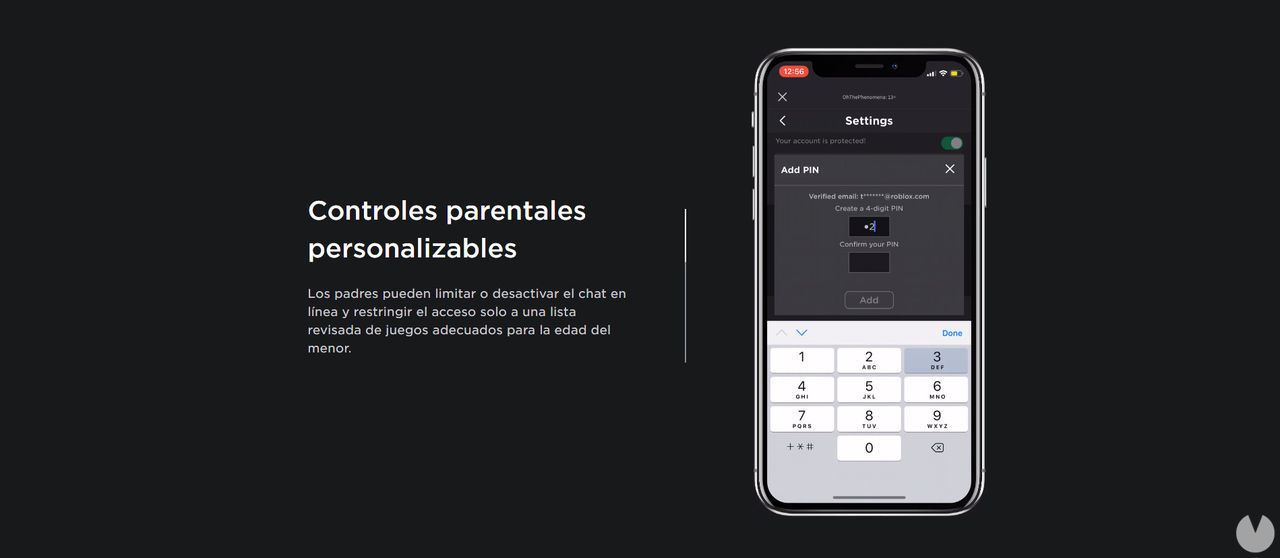
You can add a four-digit PIN to the account to lock its settings and prevent your child from changing them without your consent. This feature protects your password, email address, and privacy settings.
Follow these steps to enable an account PIN:
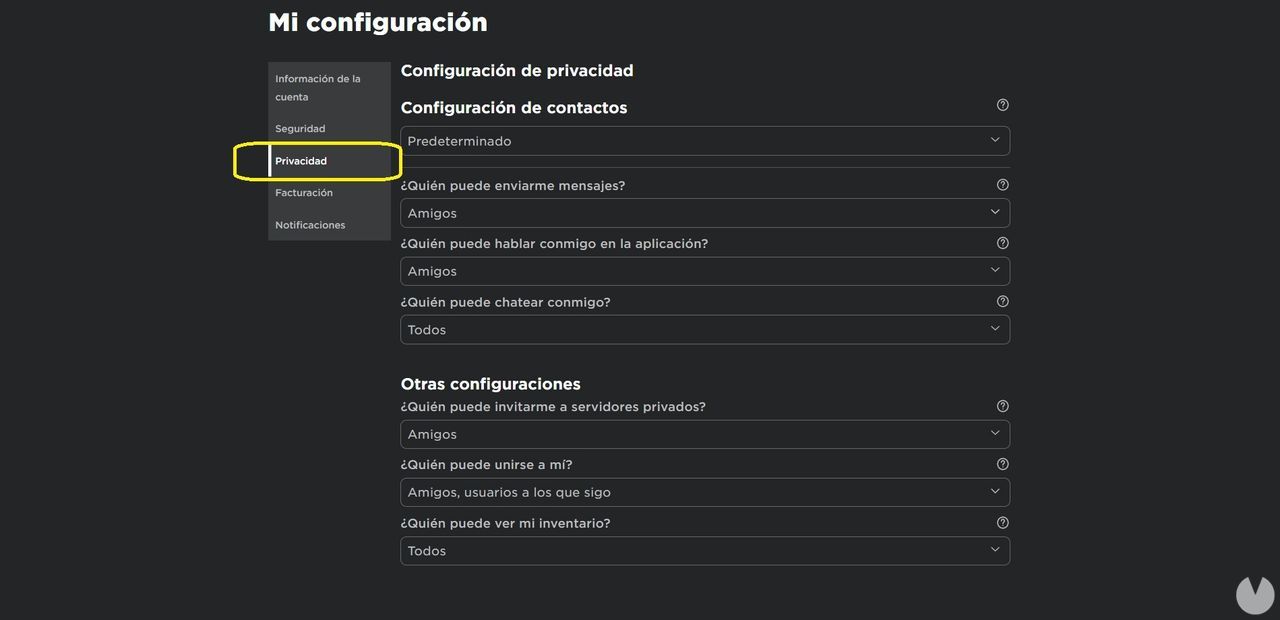
Roblox chat can also be controlled for children and younger players. Roblox has an extensive filtering system that actively monitors and dynamically adjusts to chat activity both on the website and within games to maintain a safe environment.
Follow these steps to restrict or disable chat features:
Roblox also allows you to block other users who harass or intimidate you or send you spam. Follow these steps to do so:
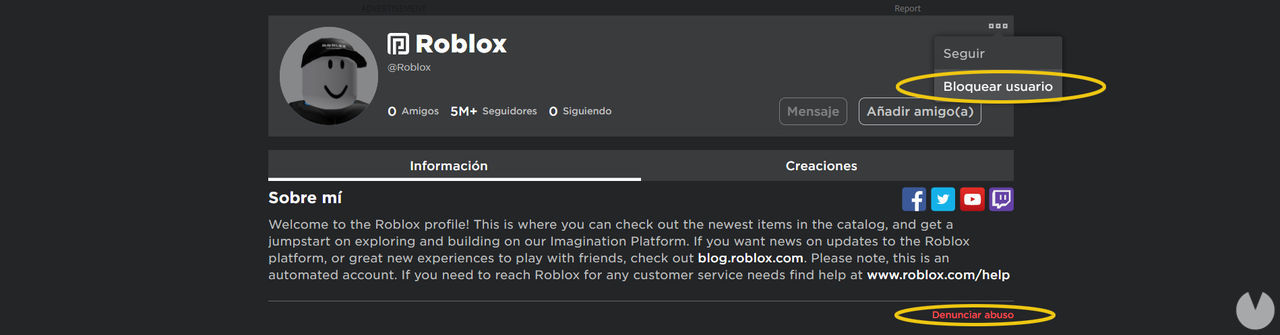
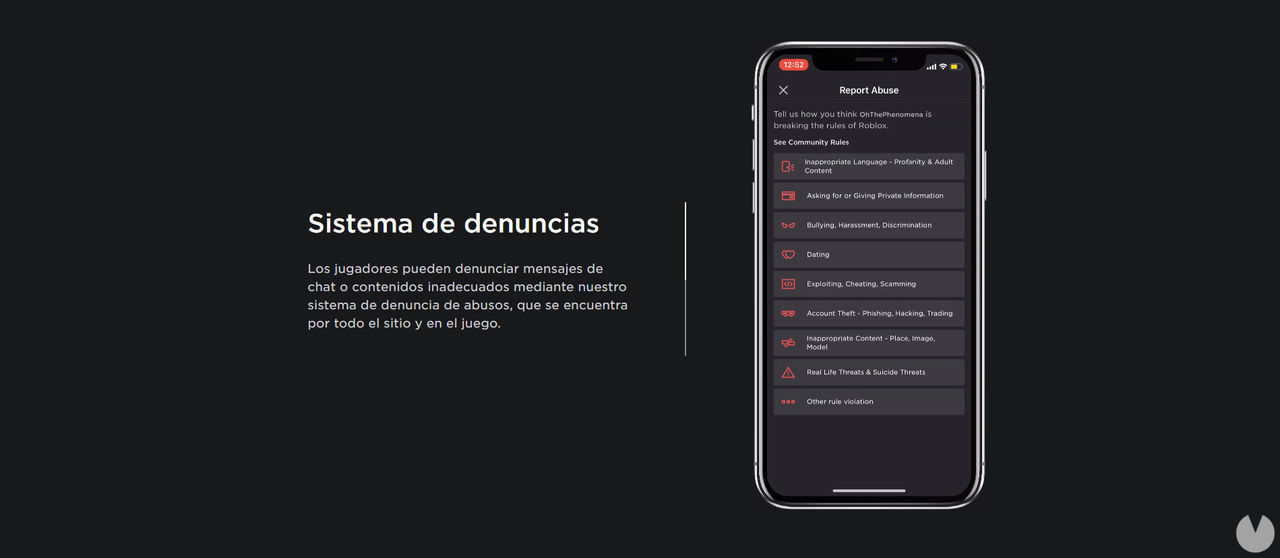
Once blocked, that user will no longer be able to bother you. If you want to report abuse or flag a rule violation, tools are also available both inside and outside games. You can submit the relevant information to the moderators so they can investigate the issue and address it as quickly as possible. To report abuse or another violation, take a look at the instructions on this Roblox Support page.
In addition to everything covered in this guide for parents, don't hesitate to explore the other sections of our game guide to learn more about Roblox and make the most of the platform, including the best games available on Roblox and how to create games from scratch.
